Tuesday, 11 November 2008

Mac Rant

This is genius, my good friend Moley just had a bit of a rant about Mac OS:

http://mole-spot.blogspot.com/2008/11/on-mac.html

Give him love.

Monday, 10 November 2008

Ruby

I've been thinking a lot about this recently: I feel that it's a severe hole in my programming knowledge if I don't know any object-oriented languages.

I only know C. Which isn't object-oriented. What am I going to do about this? I think I'm going to learn Ruby, as its apparently 100% OO'd and nice to write in.

I'll let you know how it goes!

Erm, can anyone recommend any books?

Saturday, 8 November 2008

My Backup Solution

Last night I put the finishing touches on my little backup system for my home network and it all works!

About 2 months ago I grew annoyed with the fact that I had no real backup system in place for my gear, I decided that something needed to be done. I did a quick search for backup schedulers and didn't find anything out there that tickled my fancy, so I thought "What the heck, I'll build my own."

It consists of a daemon on a server computer (which I wrote in C) and a little Python script on each computer in my network (written for me by my good friend Steve as I lack Python skillz).

The daemon comes up when the server boots and sends a broadcast packet to let everyone know it is awake and ready to receive files, each host then sends the server a request to join the backup queue. The server works through the queue, starting what I call the backup transaction with each host in the queue in turn; first it sends the host a "backup now!" packet, the host sends the compressed backup files then tells the server when it's done. The daemon then moves on to the next client in the list. Basic stuff really. But it took me ages to get right...

The daemon should compile on a Linux box (well, I hope so, it compiled on mine...). The log directory needs to be set to somewhere that is writeable by the user you run the executable with obviously.

I'm not going to be so arrogant as to say that my code is perfect, it isn't. I'm putting it up here to show everybody and to learn from your comments. Don't insult me too much please :P


Here goes:
BUddyd.c: http://pastie.org/310236
BUddy.py: http://pastie.org/310981

The "auto client" I talk about is an edited version of the BUddy.py script that listens for the broadcast packet and then joins the queue. I'm just sticking with the manual way for now.


Friday, 7 November 2008

Me on a Mac

I'm in the computer room in school at the moment, its lunchtime and Steve & Connor are with me. We're on Macs. Yes, Macs. As in the computers. Not Emacs. I think its a new iMac, not too sure having never really been interested in this sort of thing. 

So, turns out you can get a terminal pretty easily on these, on all the Windows computers in school you can't have command prompt. I have no idea why its ok for students to get a terminal on a Mac. Strange. Maybe the old "You can't hack a Mac" ideology has prevailed here again, all the IT staff are Mac fanboiz... :P 

To tell you the truth, I'm beginning to see why people love these Apple computers. They actually seem quite nice, I mean the monitor is very pretty looking compared to my HP block of plastic I have at home and the picture quality is gorgeous. Splendid. 

Unfortunately they cost the earth, and you can't really configure anything the way you like. Plus you can't ALT+p to get the screaming fast programs menu up (hehe, see my previous post on my new love: wmii). Which is why I probably won't be getting a Mac any time soon. I love my Linux experience, I've become used to downloading programs for free and not feeling guilty about it, then configuring them to precisely the way I want them, this isn't really what this Mac is offering me. Plus it's £1000+... 


wmii

So. I'd been hearing over the past few days about another lightweight window manager called wmii. I'd heard that it was even lighter than Fluxbox (I was skeptical) and pretty much cut out any mouse usage as everything is done by using keyboard shortcuts (I was excited). So, I thought I'd give it a whizz, and, so far so good.

Get it here: http://suckless.org/wmii

I had a little trouble compiling the source, and to be perfectly honest I gave up. I'm not into fixing mistakes, I ended up using apt-get to install. Apart from that, things have been dandy.

So, why's it different? Well, first off its a tiled window manager, which is something that I've never tried before, basically you don't drag the windows about but just let it arrange them all nicely as if they're tiles on a bathroom wall. Which works rather well, you no longer have to do all this yourself when you have four terminals open, it resizes them to all fit on your screen. Its magnificent.

And yes, it is very lightweight. But only because there's virtually no graphics involved, window decoration seems to consist of flat colours. But I don't mind, things zip along nicely.

Another nice little touch is what the wmii crew call the programs menu, you hit ALT+p and a list of all the programs you have installed come up and you just enter the one you want. Which is nice and easy, you need to try it for yourself to really understand, I haven't done it justice with my clumsy explanation :P

So, yeah, wmii is great and light, and I think I'll stick with it for a while, I love the tiling part. Bit hard to configure at the minute, I still haven't grasped it yet...

Get it.

Thursday, 6 November 2008

ICT blog

Steve started a blog about our adventures in ICT. And I'm writing a little on it.

Check it out:

http://ictlol.blogspot.com

Enjoy. Despite its complete lack of purpose. :D

Saturday, 1 November 2008

Fluxbox Install Guide

Fluxbox is a lightweight window manager for the Linux operating system, and boy is it nice. It's basically like Gnome or KDE, without all the extra bloat. Here's it what it can look like when you configure it the way you want it:
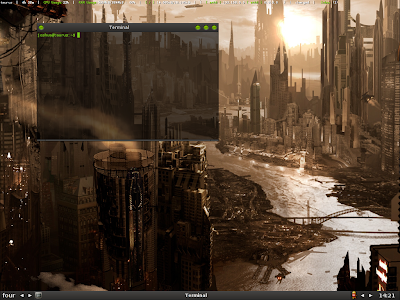

Check out the project website here.
Link
So, how do you install it?
On Debian and Ubuntu it's nice and easy, simply type these magic words into your terminal:
#apt-get update
#apt-get clean
#apt-get install fluxbox

Do this all as root (thats what the # means).

This will do it all for you. Lovely.

On Ubuntu you need to check whether or not you have the Universe repositories in your /etc/apt/sources.list file, or else this won't work as it won't be able to find the package, and we don't want that now do we?

Note that this way will give you the not-so-bleeding edge version of fluxbox, if you want the still-warm-from-the-oven-freshly-baked new version then you're going to have to compile from source. This is where you Ubuntu dudes start to click the "Back" key on your browsers and look for another easier way of doing it, but I assure you, this is simple. You're going to need to find the latest source tarball, at the time of writing it looks like 1.0.0 is the latest stable version, so lets get that. You can go more recent if you want (you could get the development version, apparently its pretty stable at this stage anyway)

$ wget http://kent.dl.sourceforge.net/sourceforge/fluxbox/fluxbox-1.0.0.tar.gz

You'll need to extract that tarball:

$ tar -xvvf fluxbox-1.0.0.tar.gz

The -xvvf part is just the command line arguments that tell tar to extract the file and be verbose about it.

Now for the fun part, from the extracted directory you just run the configure script:

$ ./configure

Provided that ran through with no errors you can now get to compiling and installing:

$ make
# make install

Notice how the "make install" is run as root? Thats the install step that puts the files into their correct place, so it needs root access to do that.

Fluxbox is now installed! Note, if you had trouble with the configure script and it said something about a missing dependancy, you can do a sneaky little trick and get the dependancies automatically:

# sudo apt-get build-dep fluxbox

Thats kind of a dirty hack, don't tell any of your Slackware mates you did it...

Now, we need to get this running on startup. Change your /etc/X11/default-display-manager file so it is simply:

/usr/bin/fluxbox

Then, if you have the file "xsession" in your home directory, set it to:

exec startfluxbox

If you don't have one, then just make it. As long as its there and looks like that it should work.

On startup you won't get the Gnome login screen, you'll get the little command line one now, after logging in you then need to type the command:

$ startx

And Fluxbox will start, as it is now your default window manager.

One of the marvelous things about this window manager is the fact that there's loads of styles made by various people already, they've all been creative so people like me don't have to...
You can get some at http://themes.freshmeat.net/browse/962/. There's a whole lot of stuff on there that you wouldn't ever dream of getting, but then again there's a few gems.

Enjoy your new low-fat window manager!